Business profile, logo and invoice defaults
In Settings → Business, set your business name, contact details and address, logo, invoice numbers, payment terms, default sales tax and the How to pay text on every invoice.
Your business profile is how your business shows up in the app and on invoices. Only owners and admins can change it.
Go to Settings → Business (on a phone: More → Business profile). Change what you need and tap Save changes.
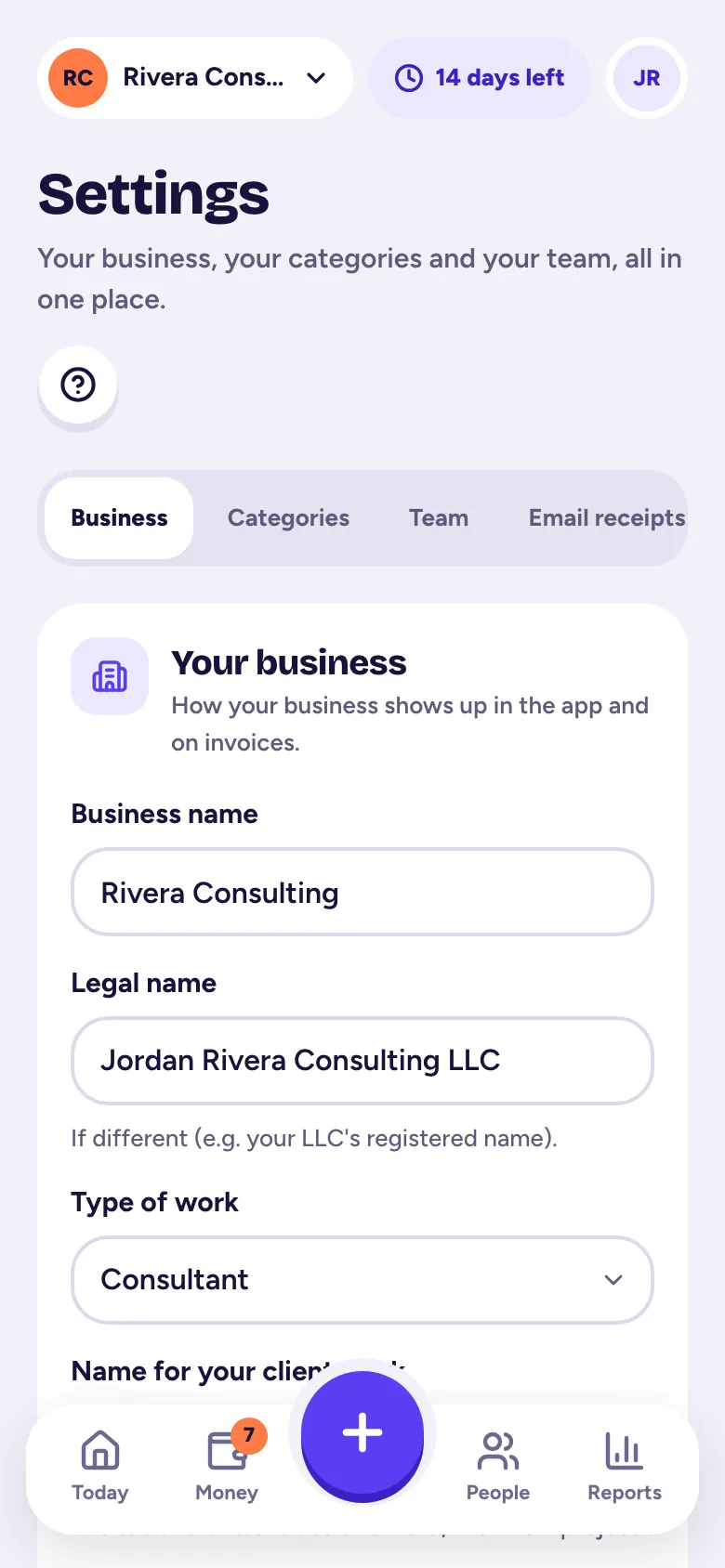
Your business
- Business name (shown everywhere) and Legal name if it's different, like your LLC's registered name.
- Type of work and Name for your client work. See Change what your work is called.
- Business structure, like sole proprietor or single-member LLC, and your Current tax year.
Contact & address
Your Email, Phone and address are printed on your invoices so customers know where to find you. When customers reply to an invoice email, the reply goes to this email (or to the owner's email if it's empty).
Your logo
Under Your logo, tap Upload and pick a PNG or JPG up to 2 MB. It shows on your invoices and their PDFs. Replace or remove it any time.
Invoice defaults
A head start for every new invoice. You can still change them on each one.
- Invoice number prefix and Next invoice number, like INV- and 1001. Numbers are given out in order when an invoice is first saved.
- Payment due (days after invoice date). 0 means due on receipt.
- Default sales tax rate (%). Leave it empty if you don't charge sales tax. See Add sales tax to an invoice.
- How customers pay you, like "Zelle to pay@yourbiz.com, or make checks payable to…". It's shown on every invoice and its customer page.
Related articles
- Change what your work is called: Jobs, Projects, Deals, GigsTallibook calls client work Jobs, Projects, Deals or Gigs depending on your business; change it in Settings → Business under Name for your client work.
- Make and send an invoiceTap + and Invoice, pick the customer, add what you're billing for, save it, then tap Send invoice; your customer gets an email with a link and a PDF.
- Add sales tax to an invoiceTurn on Charge sales tax on the invoice, type the rate, and mark which lines are taxable; set a default rate in your business profile.
- What your customer sees (the invoice link and PDF)Your customer opens a private link that shows the amount due, the due date and your How to pay text, with a PDF to download; no sign-in needed.
Still stuck?
Email us at hello@tallibook.com and tell us what you were trying to do.