What your customer sees (the invoice link and PDF)
Your customer opens a private link that shows the amount due, the due date and your How to pay text, with a PDF to download; no sign-in needed.
Every invoice has its own private web page. The email you send links to it, and you can copy the link to send by text.
What's on the page
- Your business name and the invoice number.
- Amount due and the due date, or how many days late it is.
- Your How to pay instructions, like "Zelle to pay@yourbiz.com".
- The full invoice: your logo, your contact details, the lines, tax and total.
- Download PDF and Print buttons.
Once it's paid, the page says Paid in full. Thank you!. A voided invoice says it was voided.
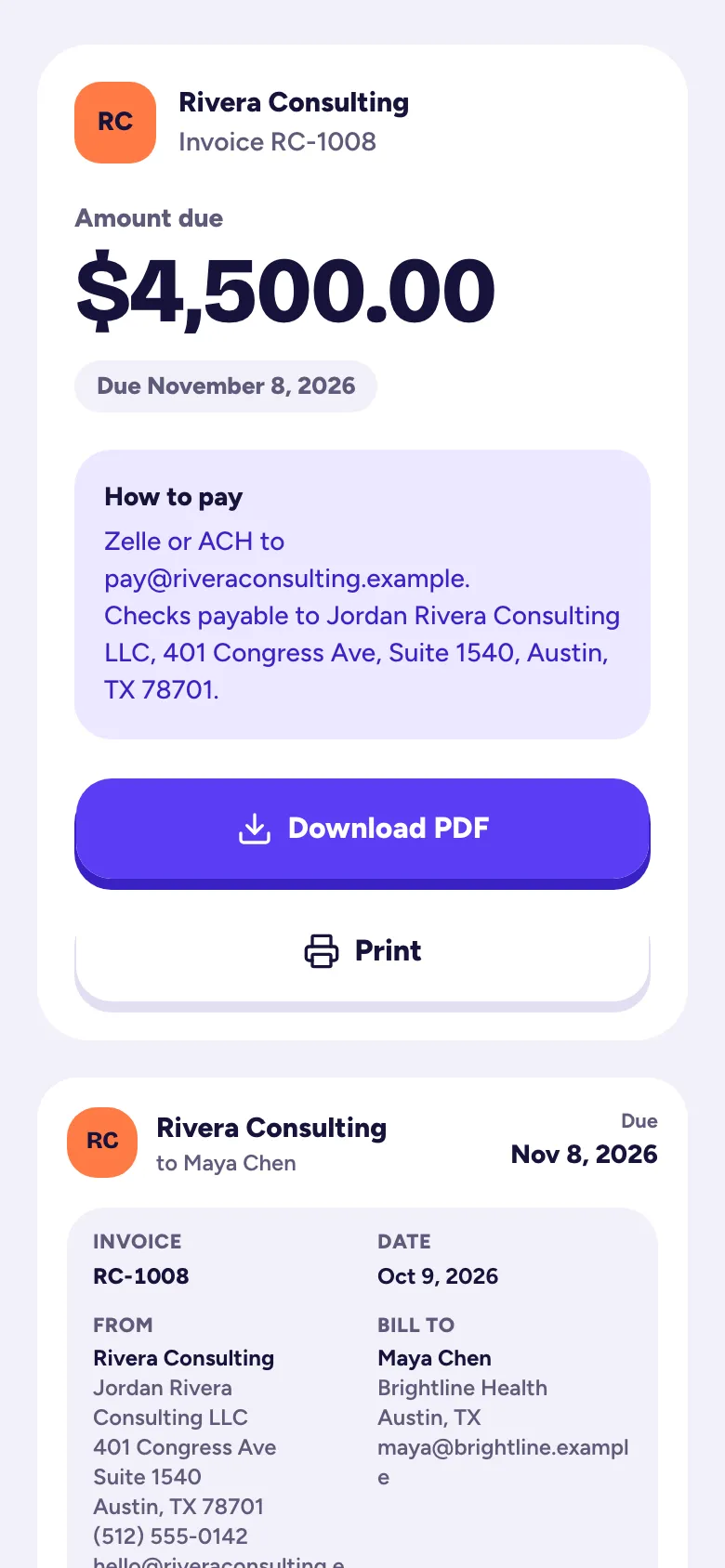
Your customer doesn't need an account or a password. The link is long and random, so only people you send it to can open it, and search engines don't list it.
See it the way they do
Open the invoice and tap Preview (for a draft) or use the … menu and Open customer view. A banner tells you it's a preview. Drafts can't be opened by your customer until you send them.
Know when they've opened it
The first time your customer opens the link, the invoice shows it was opened (the progress bar moves to Opened) and their timeline gets an entry. Your own previews don't count.
Card payments
There's no "Pay now" button yet. Customers pay using your How to pay text, and you record the payment. Online card payments are planned.
Related articles
- Make and send an invoiceTap + and Invoice, pick the customer, add what you're billing for, save it, then tap Send invoice; your customer gets an email with a link and a PDF.
- Record a payment and mark an invoice paidWhen a customer pays, open the invoice, tap the paid button (like "Maya paid") and enter the amount, date and how they paid; it's added to your income for you.
- Business profile, logo and invoice defaultsIn Settings → Business, set your business name, contact details and address, logo, invoice numbers, payment terms, default sales tax and the How to pay text on every invoice.
Still stuck?
Email us at hello@tallibook.com and tell us what you were trying to do.