Make and send an invoice
Tap + and Invoice, pick the customer, add what you're billing for, save it, then tap Send invoice; your customer gets an email with a link and a PDF.
An invoice takes about a minute. Your customer gets an email with a link to view it online and a PDF to download.
Make the invoice
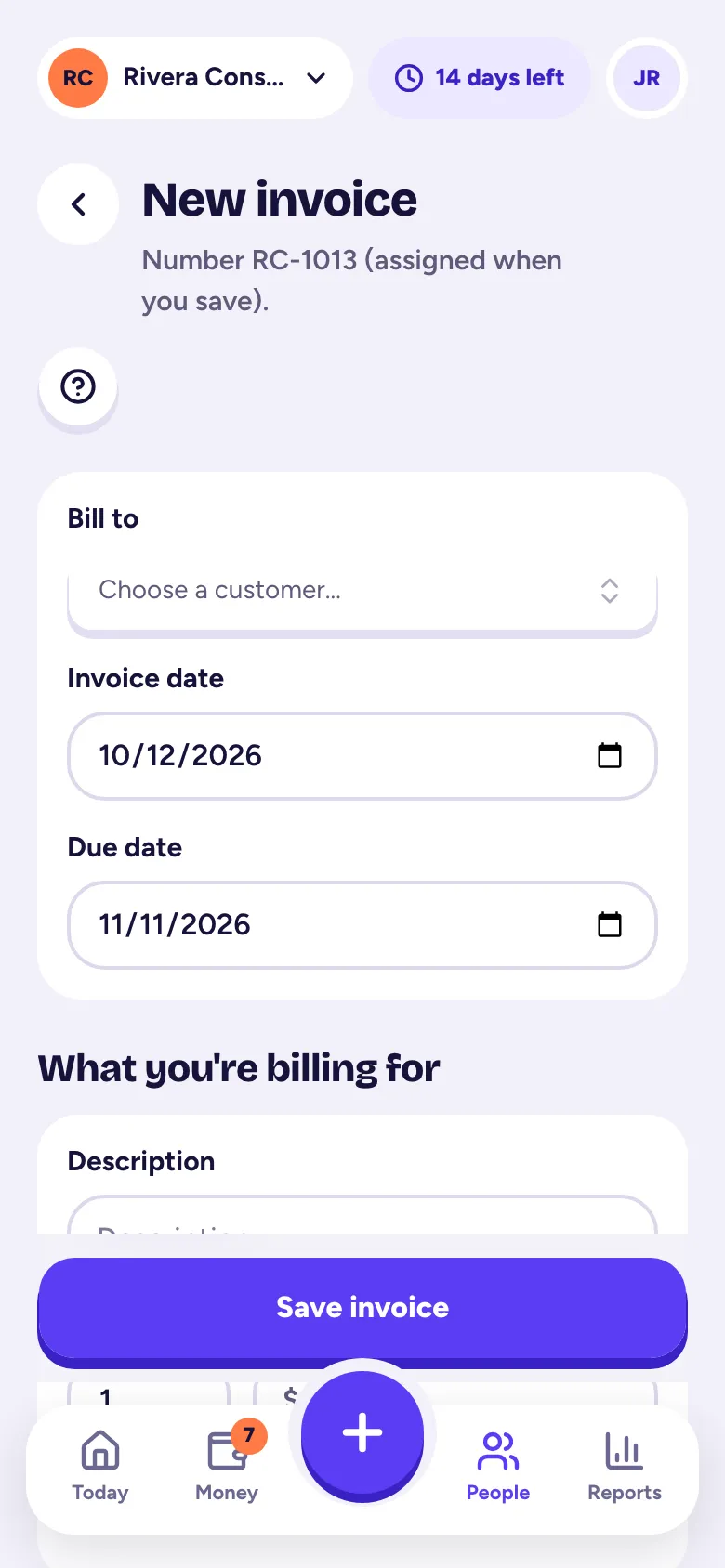
- Step 1: Tap the big +, then Invoice. Or tap New invoice in People → Invoices (on a computer, Invoices), or Invoice on a customer's page.
- Step 2: Under Bill to, pick the customer. Optional: pick the Job it's for.
- Step 3: Check the Invoice date and Due date. The due date follows your payment terms.
- Step 4: Under What you're billing for, type a description, the quantity (Qty) and the Price for each line. Tap Add line for more.
- Step 5: Tap Save invoice. It's saved as a draft with the next invoice number.
Pull in time, costs and miles
Tap Add billable items to add hours you logged, expenses and trips you marked Bill this to the customer for this customer. Tick what to bill and add it. Once they're on an invoice, they won't be offered again.
Use saved items
If you sell the same services often, save them once in Products & services (in Invoices, or More → Products & services) with a name, description and usual price. Then tap Saved items on any invoice to add one in a tap.
Send it
- Step 1: Open the invoice and tap Send invoice.
- Step 2: Check To, the Subject and the Message. Invoices go to the customer's email on file. If they don't have one, the address you type is saved to them.
- Step 3: Tap Send invoice.
The invoice moves to Sent, and the progress bar shows Made, Sent, Opened and Paid. When your customer opens the link, it shows as opened and their timeline says so.
Sent it some other way, like a text or on paper? Use the … menu and Mark as sent. To share the link yourself, tap Copy link. Tap the PDF button to download it.
Invoices are part of the Solo and Pro plans (and the free trial). Customers can't pay by card through Tallibook yet: they pay you the ways your "How to pay" text lists, and you record the payment.
Related articles
- What your customer sees (the invoice link and PDF)Your customer opens a private link that shows the amount due, the due date and your How to pay text, with a PDF to download; no sign-in needed.
- Record a payment and mark an invoice paidWhen a customer pays, open the invoice, tap the paid button (like "Maya paid") and enter the amount, date and how they paid; it's added to your income for you.
- Add sales tax to an invoiceTurn on Charge sales tax on the invoice, type the rate, and mark which lines are taxable; set a default rate in your business profile.
- Business profile, logo and invoice defaultsIn Settings → Business, set your business name, contact details and address, logo, invoice numbers, payment terms, default sales tax and the How to pay text on every invoice.
Still stuck?
Email us at hello@tallibook.com and tell us what you were trying to do.