Find your way around the app
On a phone, use the tab bar (Today, Money, +, People, Reports) and the avatar menu; on a computer, everything is in the left sidebar.
Tallibook works the same on a phone and a computer. Only the menus move.
On a phone
The tab bar at the bottom has:
- Today: your home screen, with what needs you.
- Money: money in, money out, mileage, imports and your To review list.
- + (the big violet button): add something fast.
- People: your customers, jobs, invoices and meetings. Switch between them with the tabs at the top.
- Reports: tax-ready summaries, downloads and your tax season pack.
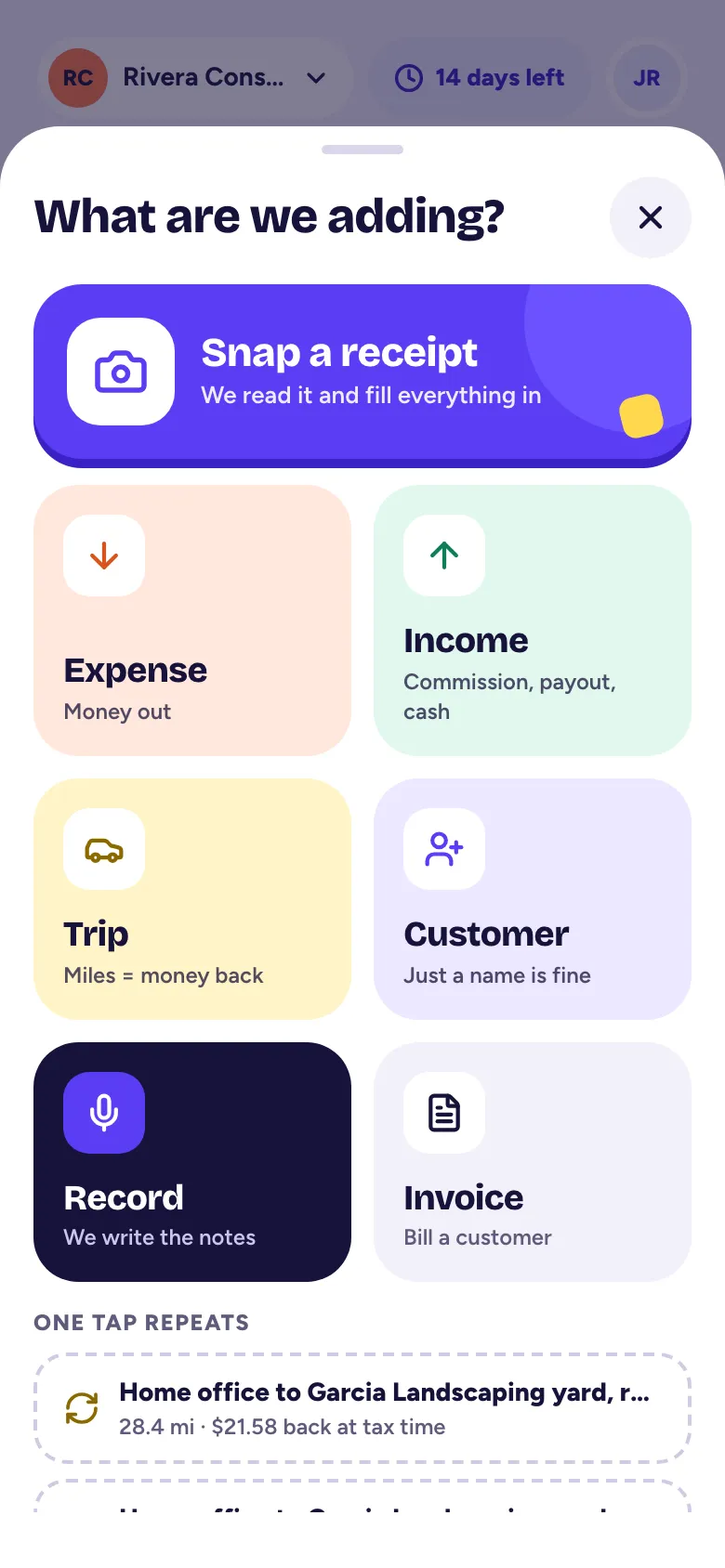
Tap the + to add an Expense, Income, Trip, Customer, Invoice, or to Record a meeting. The big Snap a receipt card is at the top. Under One tap repeats, your two most recent trips are ready to log again.
Tap your initials in the top right for Settings, More, the light or dark look (Appearance) and Sign out. More lists everything that isn't in the tab bar: recurring charges, products and services, categories, your team, Move to Tallibook and Help.
The pill in the top left shows your business. Tap it to switch businesses.
On a computer
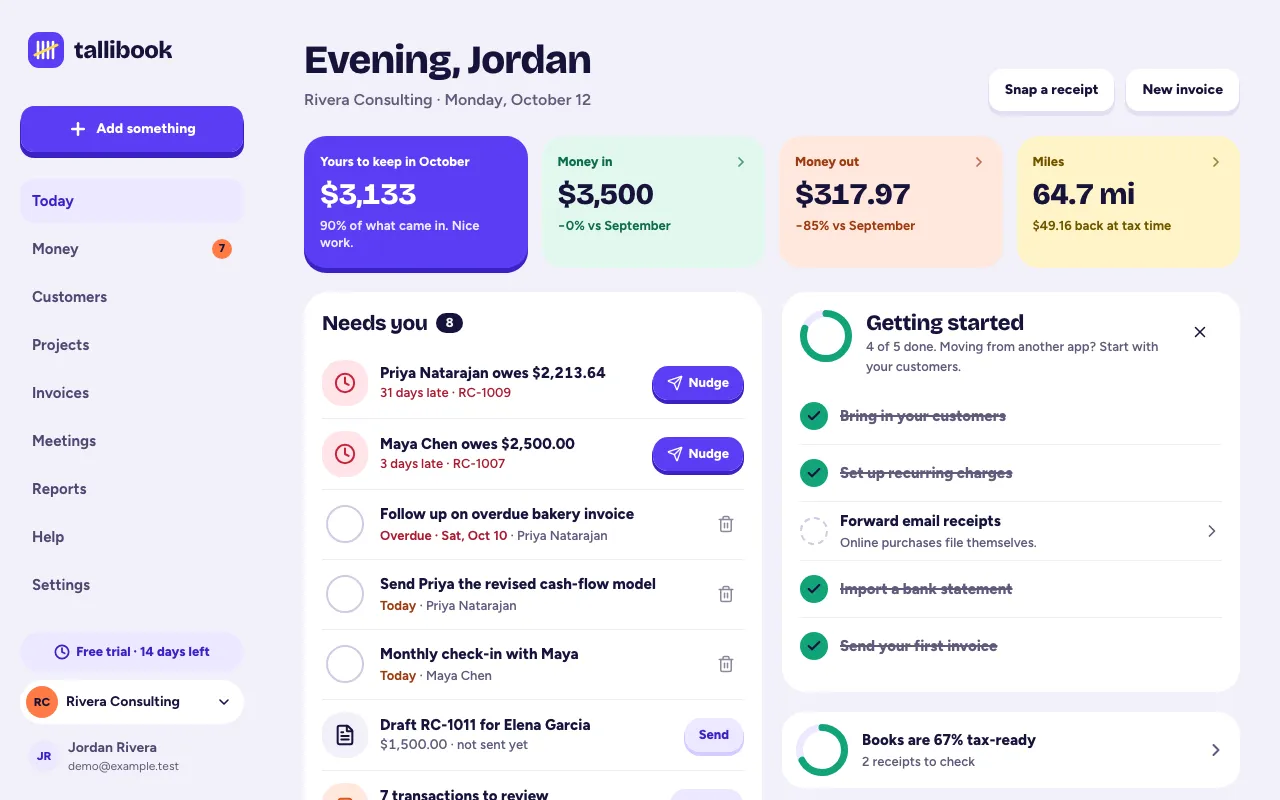
Everything is in the sidebar on the left: Add something (the same choices as the +), Today, Money, Customers, Jobs, Invoices, Meetings, Reports, Help and Settings. Your business and your account are at the bottom.
Inside Money
Money has its own tabs: Overview, To review, Expenses, Income, Mileage, Vendors, Vehicles, Import and Rules. A number on the Money tab means items are waiting in To review.
Getting help
Look for the ? button at the top of a screen. It opens the help article for that screen. The full help center is under Help in the sidebar, or More → Help on a phone.
Related articles
- Getting started with TallibookCreate your account, answer three quick questions about your business, and you land on Today, ready to snap a receipt or log a trip.
- Put Tallibook on your phone's home screenTallibook runs in your phone's browser; add it to your home screen and it opens full screen like any other app.
- Run more than one businessUse the business switcher to add another business; each one keeps its own money, customers, team and plan.
Still stuck?
Email us at hello@tallibook.com and tell us what you were trying to do.