Categories and Schedule C lines
Every category maps to a line on the IRS Schedule C, so your reports come out tax-ready; add, rename or archive categories in Settings → Categories.
Each category in Tallibook is tied to a line on IRS Schedule C, the form sole proprietors and single-member LLCs use for business income and expenses. Pick the right category and the expense lands on the right tax line.
The categories you start with
Every business starts with a set that matches Schedule C, such as Advertising & marketing, Supplies & materials, Software & subscriptions, Meals (business), Travel, Phone & internet, Contractors and Parking & tolls. For money in there are Services / Sales, Commissions, Platform payouts and Other income.
Add your own
Only owners and admins can change categories.
- Step 1: Go to Settings → Categories (on a phone: More → Categories).
- Step 2: Choose Money out or Money in.
- Step 3: Tap Add category.
- Step 4: Type a Name and pick the Schedule C line. Not sure which line? "Other expenses" is fine; your accountant can move it.
- Step 5: Tap Add category.
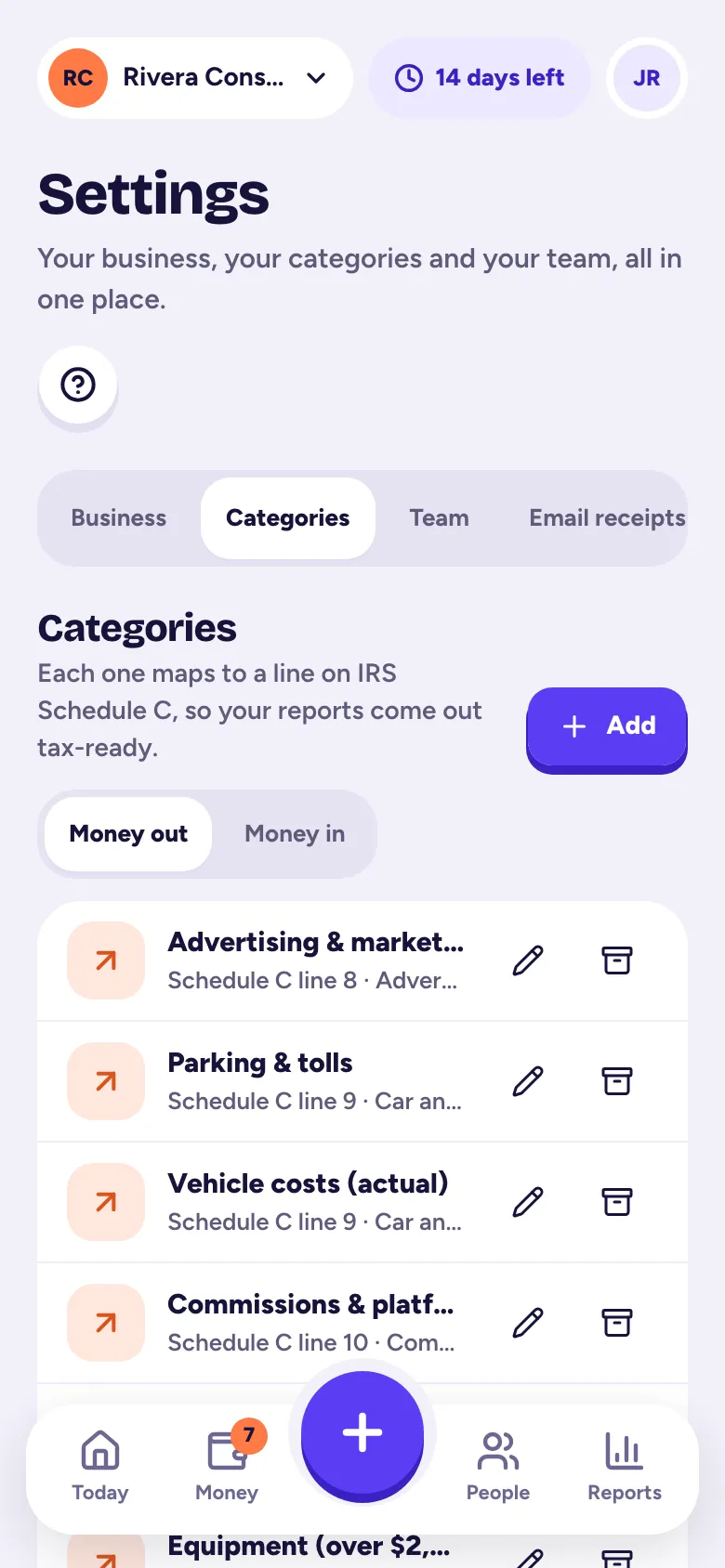
Your own categories show a Custom badge.
Rename or archive
Tap the pencil to rename a category or change its line. Tap the archive button to hide a category you no longer use; past expenses keep it. Use Show archived to see and restore them. Categories can't be deleted, so your history always adds up.
Expenses with no category
An expense without a category isn't on any Schedule C line. Money's Needs attention list and the tax pack checklist point you to them so you can fix them before tax time.
Related articles
- Your Schedule C summaryReports → Schedule C summary lines up your income and expenses with IRS Schedule C, line by line, with your estimated net profit; it's on every plan.
- Add an expense by handTap + and Expense, type the amount, who you paid, the date and a category, then tap Save expense; you can attach a receipt photo too.
- Business or personal? Sorting To reviewImported and forwarded transactions wait in Money → To review; tap Business or Personal on each (or Approve all), and nothing counts until you say yes.
Still stuck?
Email us at hello@tallibook.com and tell us what you were trying to do.