Add an expense by hand
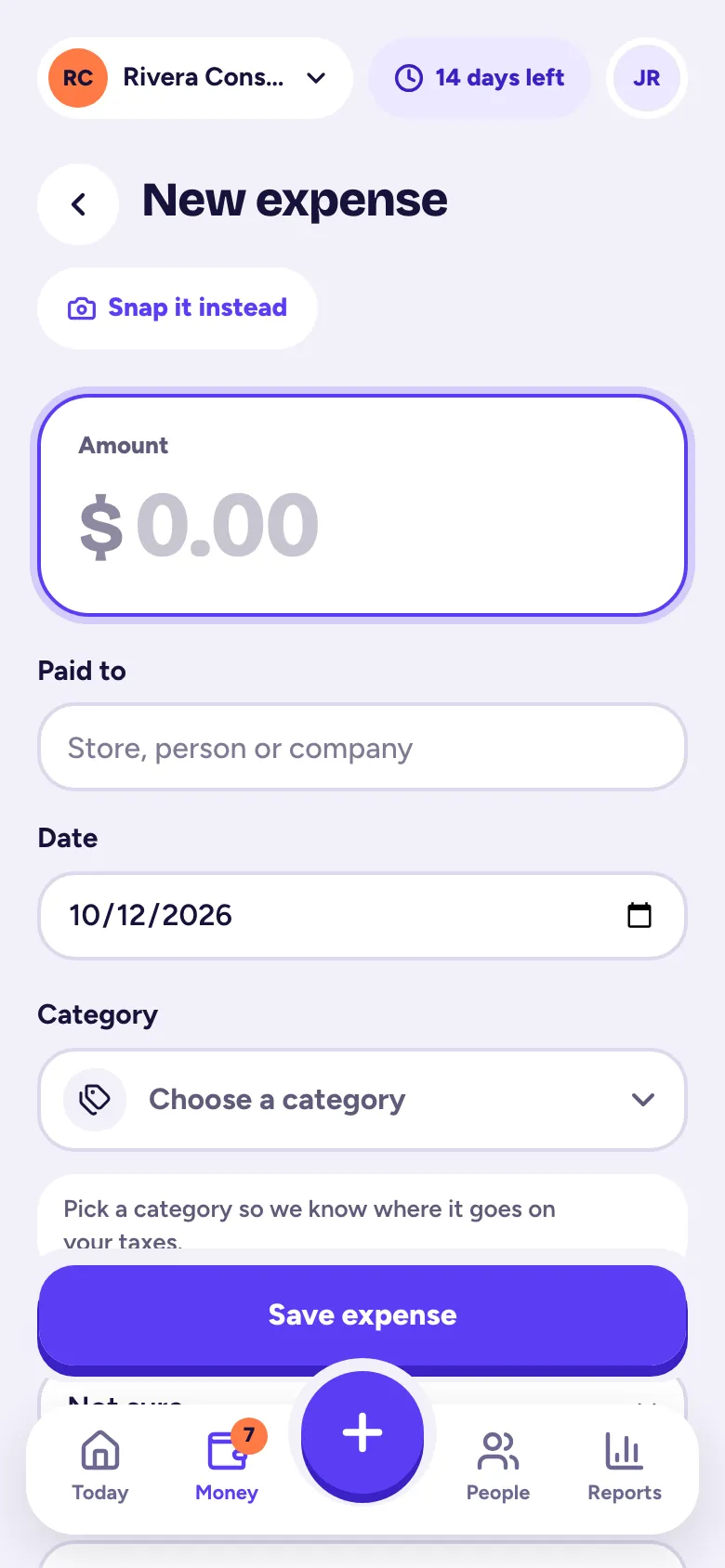
Tap + and Expense, type the amount, who you paid, the date and a category, then tap Save expense; you can attach a receipt photo too.
Use this for anything you paid for the business without a receipt to snap: a card charge you remember, a cash payment, an online subscription.
Add an expense
- Step 1: Tap the big +, then Expense. On a computer, go to Money → Expenses and click Add expense.
- Step 2: Type the amount.
- Step 3: Fill in Paid to (the store, person or company) and the Date.
- Step 4: Pick a Category. The line under it shows how much comes off your taxable income.
- Step 5: Optional: Paid with, a Customer or Job, and Notes.
- Step 6: Optional: tap Attach receipt photo to add a picture or PDF.
- Step 7: Tap Save expense.
Bill it to a customer
Pick the customer or job, then turn on Bill this to the customer. The expense shows up under Add billable items the next time you make an invoice for them. See Send an invoice.
Keep receipts for $75 and up
The IRS expects a receipt for business costs of $75 or more. Expenses like that without one show No receipt in the list, and Money → Overview lists them under Needs attention. Open the expense and attach a photo.
Find, change or delete an expense
Go to Money → Expenses. Search by who you paid or a note, and filter by dates, category, receipt, customer or job. Tap an expense to change it, then Save changes. To remove it, tap Delete at the bottom. An expense that's already on an invoice can't be deleted until you take it off the invoice.
Vendors are created for you as you type Paid to. See Vendors and 1099 contractors.
Related articles
- Snap a receiptTap + and Snap a receipt, take a photo, and we read the amount, date and store for you; check it and tap Looks good, save it.
- Categories and Schedule C linesEvery category maps to a line on the IRS Schedule C, so your reports come out tax-ready; add, rename or archive categories in Settings → Categories.
- Vendors and 1099 contractorsVendors are created as you type who you paid; mark people you pay for work as 1099 contractors and Tallibook tells you who needs a 1099-NEC.
- Make and send an invoiceTap + and Invoice, pick the customer, add what you're billing for, save it, then tap Send invoice; your customer gets an email with a link and a PDF.
Still stuck?
Email us at hello@tallibook.com and tell us what you were trying to do.