Snap a receipt
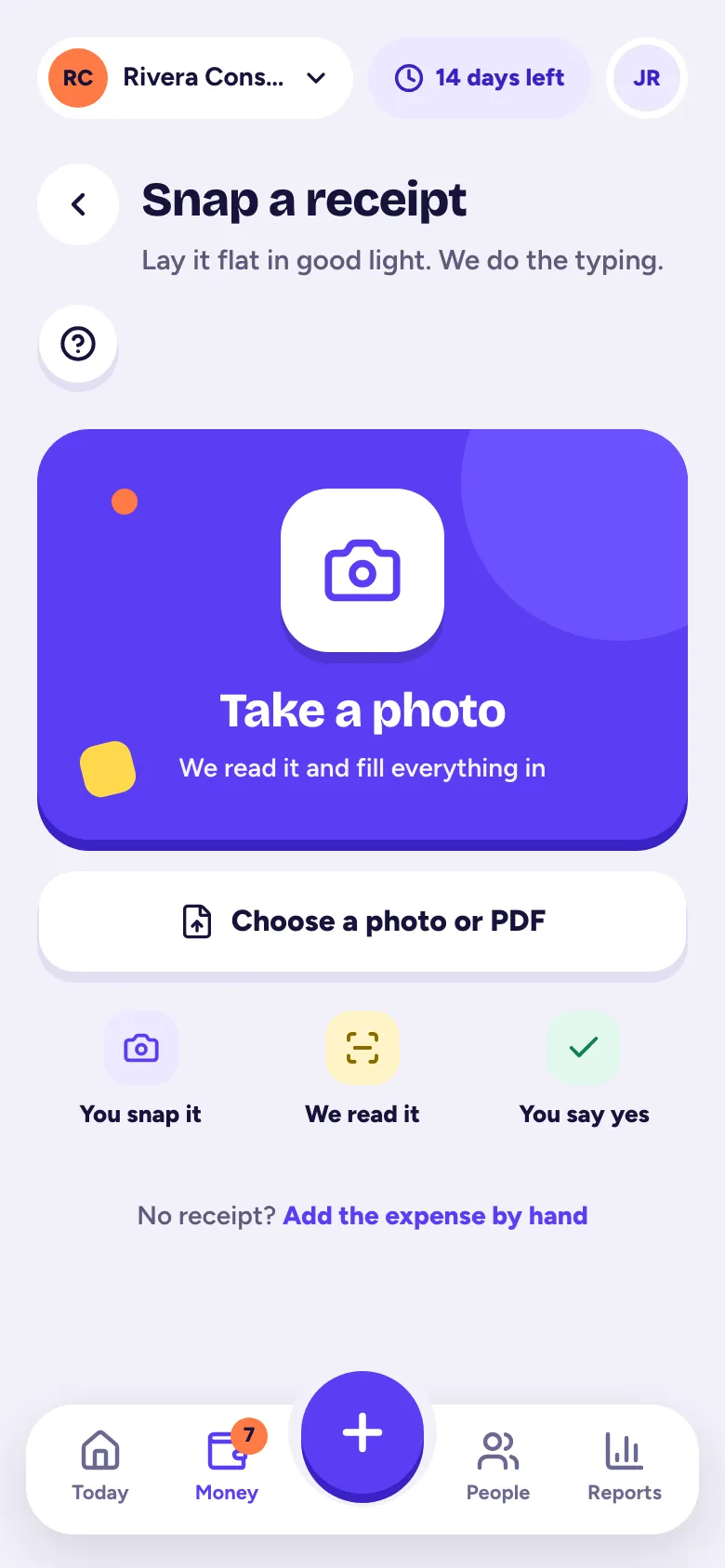
Tap + and Snap a receipt, take a photo, and we read the amount, date and store for you; check it and tap Looks good, save it.
Snap a paper receipt and Tallibook does the typing: it reads the amount, the date and the store, and suggests a category. You just check it.
Snap it
- Step 1: Tap the big +, then Snap a receipt. On a computer, go to Money and click Snap a receipt.
- Step 2: Tap Take a photo. Lay the receipt flat in good light so the total is easy to read.
- Step 3: Wait a few seconds while it says Reading your receipt….
Already have the photo or a PDF? Tap Choose a photo or PDF instead. On a computer you can drop the file into the box. Files can be up to 10 MB.
Check it and save
You land on Check your receipt, with the photo next to what we read. The green chip says how fast it was read.
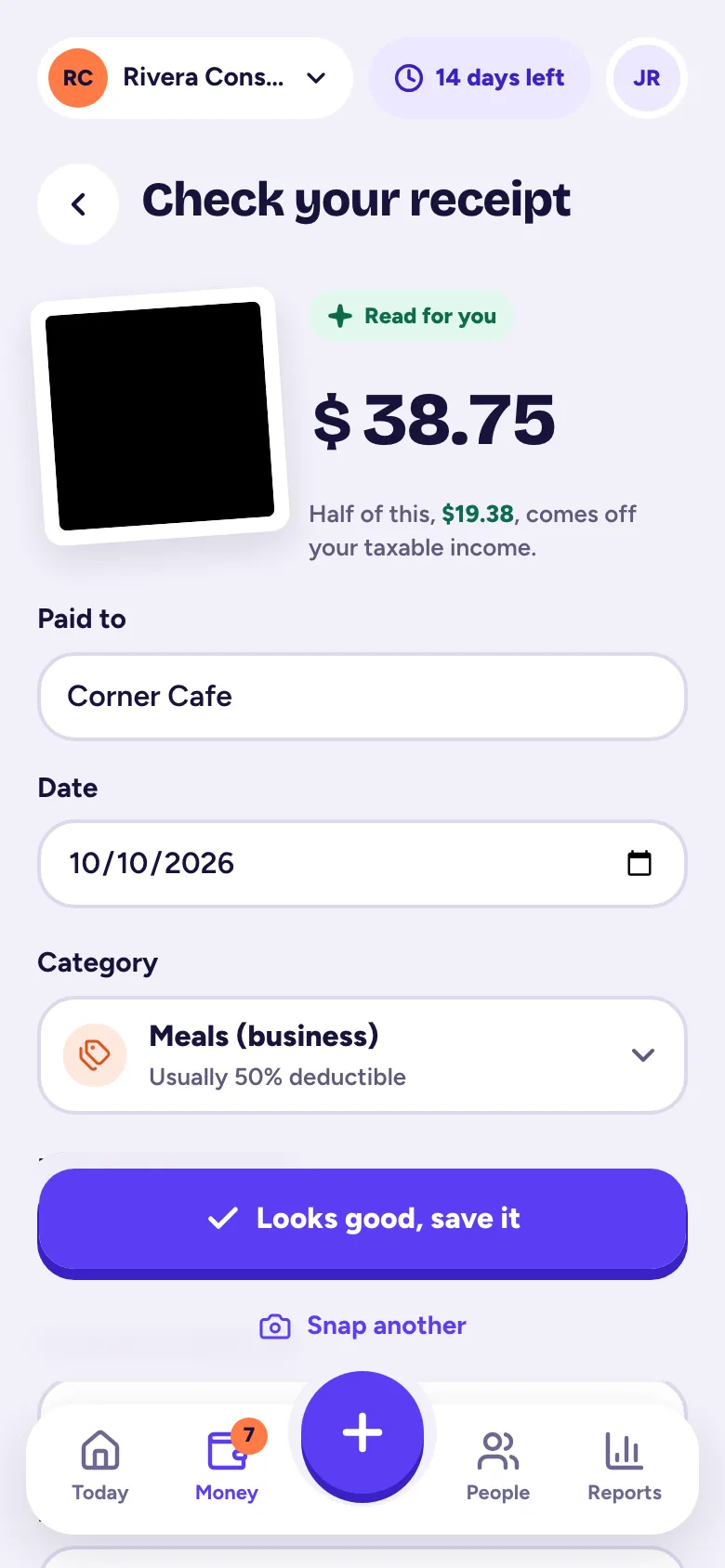
- Step 1: Check the amount and the date.
- Step 2: Check Paid to and the category. The line under the amount tells you how much comes off your taxable income.
- Step 3: Optional: pick the Customer or Job it was for, and turn on Bill this to the customer if you'll put it on their invoice.
- Step 4: Tap Looks good, save it.
Want to do the next one? Tap Snap another.
Receipts to check
A snapped receipt doesn't count in your totals or reports until you save it. Unsaved ones wait under Money → Expenses, in the receipts to check banner, and on Today. Changed your mind? Open it and tap Discard receipt.
No receipt with you?
Add the expense by hand and attach the photo later. See Add an expense by hand. For receipts in your inbox, forward them to Tallibook. Got a pile? Upload them all at once.
Related articles
- Add an expense by handTap + and Expense, type the amount, who you paid, the date and a category, then tap Save expense; you can attach a receipt photo too.
- Upload a pile of receipts at onceIn Money → Import, under Upload receipts, pick up to 50 photos, PDFs or saved emails at a time; each is read and waits in To review.
- Forward email receipts to TallibookForward receipt emails to your private Tallibook address (Settings → Email receipts), or set up auto-forwarding once; each one is read and waits in To review.
- We couldn't read my receiptYour receipt is still saved; type the details in yourself, tap Try reading again, or retake the photo flat, in good light, with the total showing.
Still stuck?
Email us at hello@tallibook.com and tell us what you were trying to do.